
How to Run Gemma 4 Locally: Ollama, LM Studio, and Unsloth Complete Guide
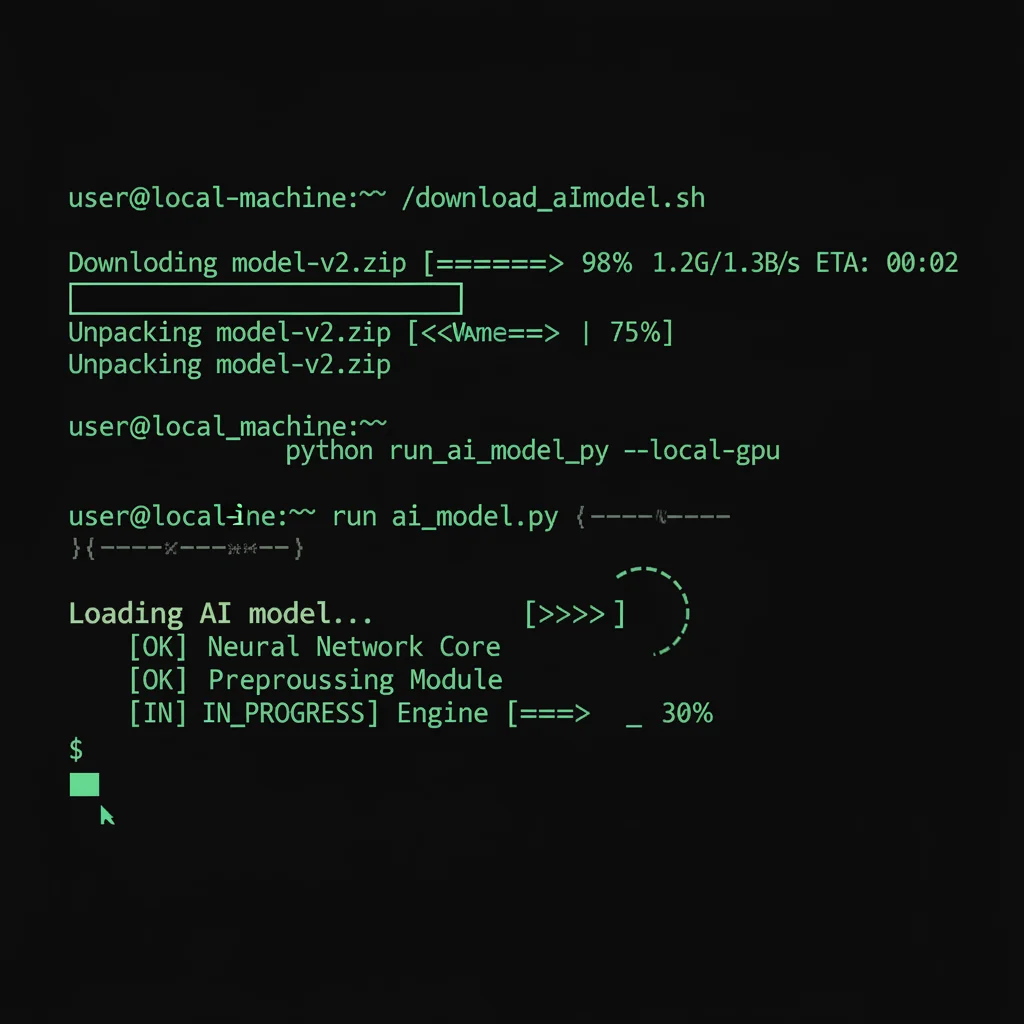
TL;DR: Ollama gets you running in five minutes with a single command — ideal for developers. LM Studio offers a full GUI — perfect for non-technical users. Unsloth has the lowest memory footprint of the three and connects seamlessly to fine-tuning workflows. All three support every Gemma 4 model size. Pick based on your use case.
"Just install Ollama, right?" That is the most common answer I hear. But Ollama is only one of three mainstream options, and it may not be the best fit for you.
Over the past week I deployed Gemma 4 E4B and 26B using all three methods, hit several undocumented gotchas, and discovered some nuances the official docs do not mention. This article walks through the full process, trade-offs, and common issues for each approach.
Not sure which deployment path fits your team? Book a free architecture consultation and let our consultants recommend the best approach based on your hardware and requirements.
Want to understand Gemma 4's full capabilities and model family first? See the Gemma 4 Complete Guide.
Why Run Gemma 4 Locally? Three Reasons
Before you start, ask yourself honestly: do you actually need local deployment?
If you only run a few queries a day, Google AI Studio or the Vertex AI API is probably easier. But if any of the following scenarios applies, local deployment is the right call.
Reason 1: Data Privacy and Compliance
Healthcare, finance, legal — industries where data cannot leave your network. Local deployment means your prompts and responses never touch a third-party server.
Reason 2: Offline Availability
On a plane, at a remote construction site, in a factory with unreliable connectivity. Local deployment lets you use AI with zero internet. One of my clients runs Gemma 4 E4B on an offshore wind-turbine platform for equipment inspection reports — completely offline.
Reason 3: Zero API Cost
API pricing is per-token, and costs scale fast. Local deployment has near-zero marginal cost — the hardware is a one-time investment and electricity is negligible. If you process hundreds of thousands of tokens per day, local deployment pays for itself within three months.
Before You Start: Confirm Your Hardware Can Handle It
Before installing anything, check your hardware. Choosing the wrong model size means either painfully slow inference or an outright OOM crash.
Quick reference:
| Model | 4-bit VRAM | Recommended Minimum Hardware |
|---|---|---|
| E2B (2.3B eff / 5.1B total) | ~3 GB | Phone, Raspberry Pi |
| E4B (4.5B eff / 8B total) | ~5 GB | Laptop with 8 GB RAM |
| 26B MoE (A4B) | ~17 GB | RTX 4090 24 GB / M4 Pro 48 GB |
| 31B Dense | ~18 GB | RTX 4090 24 GB / M4 Pro 48 GB |
Note: an MoE is sparse only in compute (each forward pass activates 3.8B parameters), but the full weight set still has to be resident in memory, so a 16 GB card cannot hold the 26B — plan on 24 GB of VRAM or unified memory. The E-series per-layer embeddings cannot be quantized, so real footprint runs higher than the effective parameter count suggests.
Need a more detailed breakdown? See the Gemma 4 Hardware Requirements Guide for per-GPU and Apple Silicon benchmarks.
Method 1: Ollama — Up and Running in Five Minutes
Ollama is the simplest local LLM tool available today. One command to install, one to download a model, one to start chatting. If you are a developer, this is where I recommend starting.
Step 1: Install Ollama
macOS:
# Option A: direct install
curl -fsSL https://ollama.com/install.sh | sh

# Option B: Homebrew
brew install ollama
Linux:
curl -fsSL https://ollama.com/install.sh | sh
Windows:
Download the .exe installer from ollama.com and run it.
After installation, Ollama automatically starts a background service listening on localhost:11434.
Step 2: Download a Gemma 4 Model
# Recommended starting point: E4B (~6.6–9.5 GB download)
ollama pull gemma4:e4b

# Stronger reasoning: 26B MoE (~16–19 GB download)
ollama pull gemma4:26b

# Lightest option: E2B (~4.6–7.5 GB download)
ollama pull gemma4:e2b
Download time depends on your connection. E4B is at most about 9.5 GB — about thirteen minutes on a 100 Mbps link. The default 26B build weighs in at around 16–19 GB. (Ollama's default builds are larger than a plain Q4 GGUF because they keep the high-precision per-layer embeddings and the mmproj file.)
Step 3: Start Chatting
# Interactive chat
ollama run gemma4:e4b

# With thinking mode (Gemma 4 supports configurable thinking)
ollama run gemma4:e4b --think=true
You will see an interactive prompt. Type a question and the model answers. Press Ctrl+D to exit.
Step 4: Connect via API
Ollama ships with an OpenAI-compatible API server, so your existing code barely needs to change:
# Test the API
curl http://localhost:11434/v1/chat/completions \
  -H "Content-Type: application/json" \
  -d '{
    "model": "gemma4:e4b",
    "messages": [{"role": "user", "content": "Explain quantum computing in three sentences."}]
  }'
# Python example (using the openai package)
from openai import OpenAI

client = OpenAI(base_url="http://localhost:11434/v1", api_key="ollama")
response = client.chat.completions.create(
    model="gemma4:e4b",
    messages=[{"role": "user", "content": "Explain quantum computing in three sentences."}]
)
print(response.choices[0].message.content)
Choosing a Quantization Level
Ollama defaults to a 4-bit build (Q4_K_M for the llama.cpp build; the MLX build uses its own format), which is good enough for most tasks. If you need higher quality:
# Specify quantization
ollama pull gemma4:26b-a4b-it-q8_0    # 8-bit — better quality, ~28 GB download
ollama pull gemma4:e4b-it-bf16        # Full precision — ~16 GB download
Ollama pros: Easiest installation, largest community, good API compatibility, rich model library. Ollama cons: No GUI, advanced tuning requires Modelfiles, no fine-tuning support.
Want to integrate Ollama into your product? Book a technical consultation — we have extensive experience with local LLM integration.
Method 2: LM Studio — Zero-Friction GUI Experience
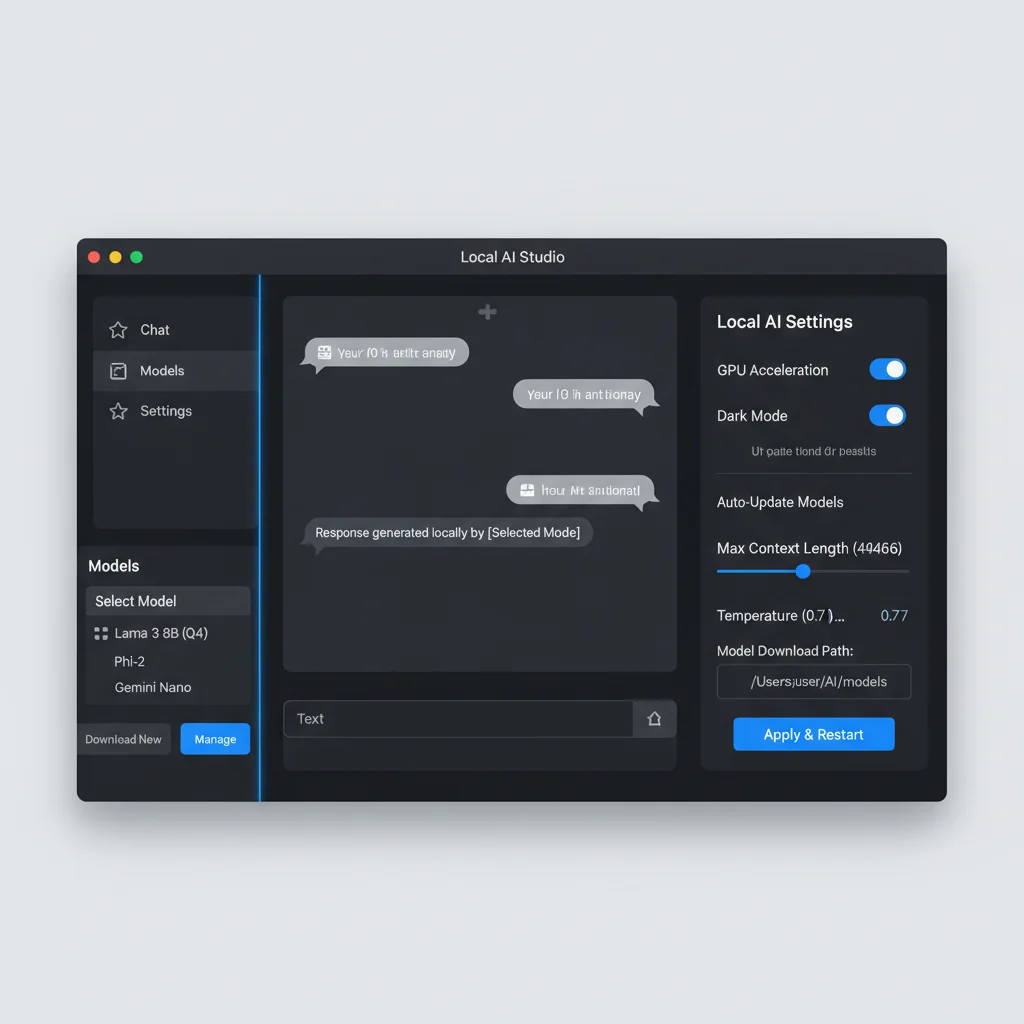
Not everyone likes typing commands. If you are a PM, a designer, or simply someone who wants to try Gemma 4 without touching a terminal, LM Studio is the best choice.
LM Studio shipped day-one support for Gemma 4. Version 0.4.0 introduced llmster, the headless daemon, giving power users a command-line option inside the same tool; the lms CLI itself is older (shipped 2024-05), and 0.4.0 revamped it rather than introducing it.
Step 1: Download and Install
Head to lmstudio.ai and download the installer for your OS. Available for macOS, Windows, and Linux.
The installation process is the same as any desktop app — next, next, finish.
Step 2: Search and Download a Gemma 4 Model
- Open LM Studio
- Click the "Discover" tab on the left
- Search for
gemma-4 - You will see Unsloth's pre-quantized GGUF variants
- Pick one that fits your memory and click "Download"
Recommendations:
- 8 GB RAM machine:
gemma-4-E4B-it-GGUF(Q4_K_M) - 24 GB+ RAM machine:
gemma-4-26B-A4B-it-GGUF(Q4_K_M)
Step 3: Load the Model and Adjust Settings
- Click the "Chat" tab
- Select your downloaded model from the dropdown at the top
- Adjust settings in the right panel:
- Context Length: Default 4096; Gemma 4 small models support up to 128K
- Temperature: Higher (0.7-1.0) for creative tasks, lower (0.1-0.3) for precision
- GPU Offload: Slide to max if you have a discrete GPU
Step 4: Start Chatting
Type your question and go. LM Studio also supports:
- Multimodal input: Drag an image into the chat — all Gemma 4 sizes support vision
- System prompts: Define the model's role and behavior in the settings panel
- Conversation history: Automatically saved; resume next time you open the app
Advanced: Using LM Studio as an API Server
LM Studio can also serve as a local API endpoint with OpenAI compatibility:
- Click the "Developer" tab
- Select a model and click "Start Server"
- Default endpoint:
http://localhost:1234/v1
curl http://localhost:1234/v1/chat/completions \
  -H "Content-Type: application/json" \
  -d '{
    "model": "gemma-4-e4b-it",
    "messages": [{"role": "user", "content": "Hello!"}]
  }'
LM Studio pros: Zero learning curve, built-in model browser, multimodal drag-and-drop, API server mode. LM Studio cons: Higher resource overhead (Electron app), no fine-tuning, power users may find the GUI unnecessary.
Method 3: Unsloth — Maximum Efficiency + Fine-Tuning Ready
If your goal goes beyond "just run it" — fine-tuning, custom quantization, or squeezing maximum efficiency out of constrained hardware — Unsloth is the right tool.
Unsloth shipped day-one Gemma 4 support with pre-quantized GGUF and MLX models. Note that Ollama itself introduced an MLX backend on Apple Silicon in 0.19 (2026-03-30), with Gemma 4 support since 0.21, so the old framing of "switch to MLX to save memory but lose speed" no longer holds — the gap now depends on model size and context length.
Step 1: Install Unsloth
# Create a virtual environment (recommended)
python3 -m venv unsloth-env
source unsloth-env/bin/activate

# Install Unsloth
pip install unsloth
If you are using an NVIDIA GPU, make sure a CUDA toolkit is installed (Unsloth recommends 12.4+, and 12.8+ for Blackwell GPUs).
Step 2: Run Inference with Unsloth
from unsloth import FastLanguageModel

# Load model (auto-detects optimal quantization)
model, tokenizer = FastLanguageModel.from_pretrained(
    model_name="unsloth/gemma-4-E4B-it",
    max_seq_length=4096,
    load_in_4bit=True,
)

# Switch to inference mode
FastLanguageModel.for_inference(model)

# Prepare input
messages = [{"role": "user", "content": "Explain LoRA fine-tuning."}]
inputs = tokenizer.apply_chat_template(
    messages, tokenize=True, add_generation_prompt=True, return_tensors="pt"
).to("cuda")

# Generate
outputs = model.generate(input_ids=inputs, max_new_tokens=512)
print(tokenizer.decode(outputs[0], skip_special_tokens=True))
Step 3: Production-Grade Inference with vLLM
For multi-user serving, vLLM's batched inference is categorically better:
# Install vLLM
pip install vllm

# Start vLLM server
vllm serve unsloth/gemma-4-26B-A4B-it \
  --max-model-len 8192 \
  --gpu-memory-utilization 0.9
Point vLLM at the non-GGUF weight repo (unsloth/gemma-4-26B-A4B-it). The -GGUF repo contains only GGUF/UD quants and an mmproj file — there are no AWQ weights in it, so --quantization awq has nothing to load.
vLLM's continuous batching and PagedAttention are designed to raise throughput under real concurrent load.
Step 4: Seamless Transition to Fine-Tuning
This is Unsloth's killer advantage — same framework, no tool-switching:
from unsloth import FastLanguageModel

model, tokenizer = FastLanguageModel.from_pretrained(
    model_name="unsloth/gemma-4-E4B-it",
    max_seq_length=2048,
    load_in_4bit=True,
)

# Add LoRA adapter
model = FastLanguageModel.get_peft_model(
    model,
    r=16,
    lora_alpha=16,
    target_modules=["q_proj", "k_proj", "v_proj", "o_proj"],
)
# Ready to train...
For the full fine-tuning walkthrough, see the Gemma 4 Fine-Tuning Guide.
Unsloth pros: Best memory efficiency, seamless inference-to-fine-tuning pipeline, optimized MLX for Mac, active community. Unsloth cons: Requires Python, more complex setup, not suited for non-technical users.
Need production-grade Gemma 4 deployment? Contact our architecture team — from inference servers to fine-tuning pipelines, we handle the full stack.
Which Method Should You Choose? Decision Matrix
| Criteria | Ollama | LM Studio | Unsloth |
|---|---|---|---|
| Ease of setup | Low (one command) | Easiest (GUI) | Medium-high (Python) |
| Install time | 2 min | 3 min | 10-15 min |
| Memory efficiency | Medium | Medium | High |
| Inference speed | Fast | Fast | Depends on model size and context length |
| API compatibility | OpenAI-compatible | OpenAI-compatible | Pair with vLLM |
| GUI | None | Full desktop app | None |
| Fine-tuning | Not supported | Not supported | Native support |
| Multimodal | Supported | Supported (drag-and-drop) | Supported |
| Best for | Developers, CLI fans | Non-technical users | ML engineers, fine-tuning |
My recommendations:
- "I just want to try it" — LM Studio. Download, install, search model, start chatting. Five minutes, zero commands.
- "I need to integrate it into my app" — Ollama. Most stable API, largest community, Docker-friendly.
- "I need fine-tuning or I'm memory-constrained" — Unsloth. It has the lowest memory footprint of the three, and the inference-to-training pipeline is seamless.
Troubleshooting Common Issues
OOM (Out of Memory) Errors
The most common problem. Symptoms: the model crashes mid-load, or the process gets killed during inference.
Solutions:
- Switch to a smaller quantization: Move from Q8 to Q4_K_M, or from Q4 to Q3_K_S
- Reduce context length: Drop from 128K to 8K or 4K
- Close memory-hungry apps: Chrome is usually the biggest offender
- Increase swap space: On Linux, adding swap slows things down but at least lets the model load
# Check current memory usage
nvidia-smi          # NVIDIA GPU
ollama ps           # See which models Ollama has loaded
Slow Inference Speed
If the model runs but speed is poor (below 10 tok/s):
- Confirm the GPU is being used: Run
nvidia-smi— if utilization is 0%, the model is running on CPU - Increase GPU layers in Ollama: Create a Modelfile and set the
num_gpuparameter - Use more aggressive quantization: Q4_K_S is roughly 10-15% faster than Q4_K_M
- Mac users: confirm you are actually on the MLX backend: which backend wins depends on the case — MLX is clearly faster on models under 14B, the two converge at 26B/31B where memory bandwidth is the bottleneck, and past ~30K of context llama.cpp with Flash Attention pulls ahead. Ollama can run Gemma 4 on MLX since 0.21 (2026-04-16); defaulting to MLX on Apple Silicon only arrived with the 0.40 pre-release (2026-09-25)
Download Failures
# Ollama: re-running pull resumes automatically
ollama pull gemma4:26b

# Manual GGUF download (for LM Studio or manual setups)
hf download unsloth/gemma-4-26B-A4B-it-GGUF \
  --include "gemma-4-26B-A4B-it-UD-Q4_K_M.gguf"
If Hugging Face downloads are slow, enable Xet high-performance transfers:
HF_XET_HIGH_PERFORMANCE=1 hf download ...
Garbled or Low-Quality Output
Usually a quantization issue. Q2 and Q3 variants show noticeable quality drops on certain tasks. Switch to Q4_K_M or higher, or add a system prompt to stabilize the output format.
Stuck on a deployment issue? Reach out to our support team — we provide end-to-end technical support for local AI deployment.
Frequently Asked Questions
Can I run Ollama and LM Studio at the same time?
Yes, but avoid loading models in both simultaneously. Each tool claims its own VRAM, making OOM errors likely. If you need both running, make sure one tool has unloaded its model first.
Gemma 4 26B MoE vs. 31B Dense — which should I run locally?
The 26B MoE is almost always the better choice. Only 3.8B parameters are active per forward pass, so it runs faster, and benchmark scores are very close to the 31B Dense. Be aware that the sparsity is in compute only — every expert's weights still have to be resident in memory, about 17 GB at Q4, not far off the 31B Dense's 18 GB. Unless you have a specific task where 31B clearly wins, go with 26B.
Should I use Ollama or Unsloth MLX on a Mac?
Depends on your memory. If your Mac has 24 GB+ of unified memory, Ollama is easy and fast (since 0.21 it can run Gemma 4 on MLX on Apple Silicon). With only 16 GB, the 26B will not fit under any framework — its Q4 weights alone are about 17 GB — so drop to E4B or smaller.
Is locally-run Gemma 4 the same quality as the API version?
The BF16 (full precision) version is identical to the API. Q8 quantization has nearly imperceptible quality loss. Q4 is good for most tasks, but you may see a 2-5% drop in math reasoning and long-form generation.
Next Steps
Local deployment is just the beginning. You may also want to explore:
- Gemma 4 Complete Guide: Understand the full model family and core capabilities
- Gemma 4 Hardware Requirements Guide: Detailed per-device configuration advice
- Gemma 4 Fine-Tuning Guide: Fine-tune your own custom model with Unsloth and LoRA
Ready to bring Gemma 4 into your enterprise workflow? Book a free architecture consultation — from model selection and hardware planning to production deployment, we provide end-to-end technical support.
Further Reading
- Run Gemma 4 31B on Mac: MacBook Pro and Mac Mini Specs - What MacBook Pro and Mac Mini actually need
Need Professional Cloud Advice?
Whether you're evaluating cloud platforms, optimizing existing architecture, or looking for cost-saving solutions, we can help
Book Free ConsultationRelated Articles
Run Gemma 4 31B on Mac: MacBook Pro and Mac Mini Specs
Complete guide to running Gemma 4 31B on Apple Silicon Macs: unified memory advantages, how to pick a machine by memory capacity (M4 and the current M5 generation), how Ollama and MLX actually relate, three budget tiers, installation tutorials, and community benchmarks.
AI Dev ToolsGemma 4 Hardware Requirements: RAM, VRAM and GPU
Complete 2026 hardware requirements for all five Gemma 4 models: E2B runs on phones, E4B on laptops, 12B Unified needs an 8GB GPU, 26B MoE needs a 24GB GPU, 31B Dense needs an 80GB H100. Includes quantization comparisons, consumer hardware benchmarks, and server configuration guides.
AI Dev ToolsGemma 4 API Tutorial: Vertex AI and Google AI Studio
Complete 2026 Gemma 4 API integration tutorial: Google AI Studio for free quick start vs Vertex AI for enterprise deployment. Includes Python code examples, multimodal input, Function Calling, system prompts, and API pricing optimization.