
Google Workspace Admin Complete Guide: Admin Console Setup, User Management & Security Configuration
Google Workspace Admin Complete Guide: Settings & Best Practices
"The company bought Google Workspace, but I don't know how to set it up..." This is a common struggle for many new administrators. Google Workspace's management features are powerful, but there are many interface options, and it's hard to know where to start.
This article will take you from zero to mastering the most important Google Workspace admin settings.
To learn what Google Workspace is, see Google Workspace Complete Guide.
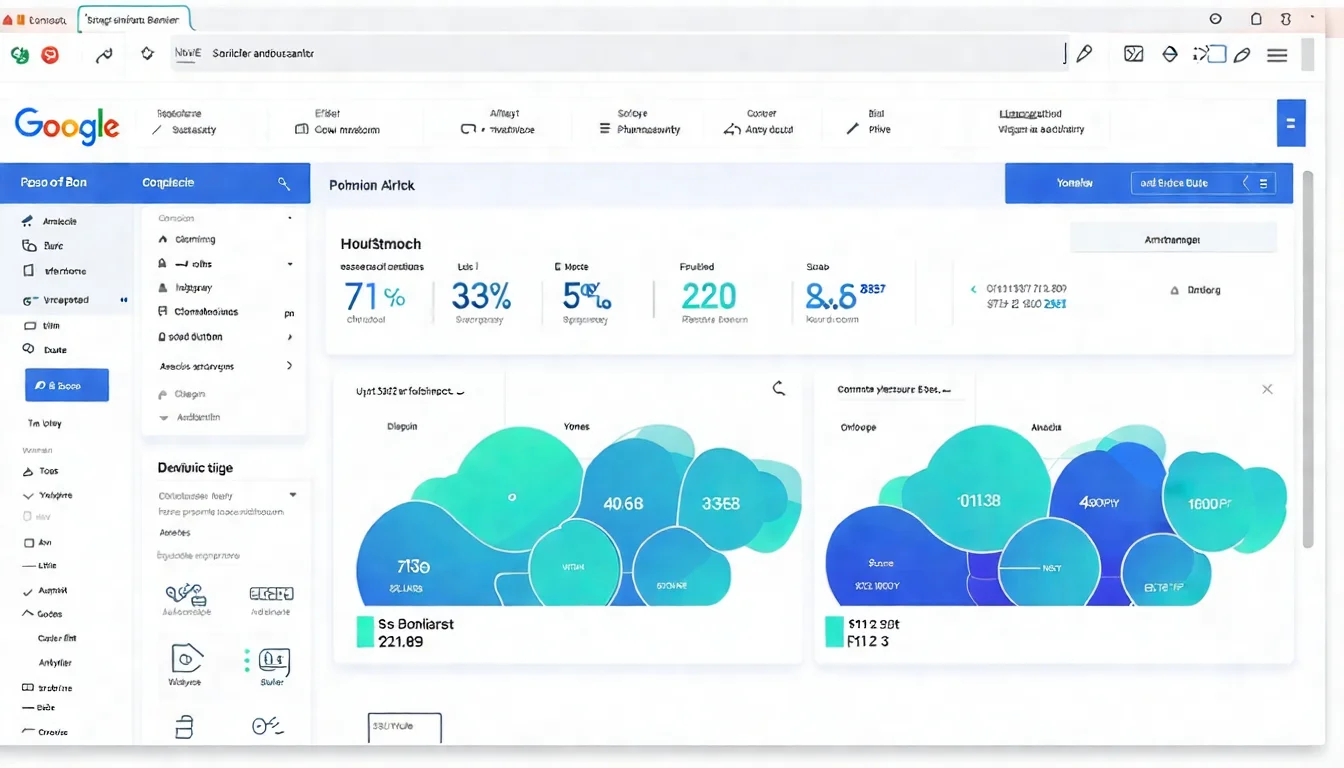
Admin Console Introduction
Login and Interface Navigation
Login method:
- Go to admin.google.com
- Log in with admin account
- Complete two-step verification (if enabled)
Main screen sections:
| Section | Function |
|---|---|
| Users | Add, edit, delete users |
| Devices | Manage company devices |
| Apps | Configure Google services |
| Billing | Subscription and payment management |
| Security | Security settings and reports |
| Reports | Usage analytics |
| Directory | Organizational structure, groups |
Quick search: There's a search box at the top of the screen where you can directly search for users, groups, settings. Very useful, remember to use it.
Admin Roles and Permissions
Google Workspace has more than one type of admin:
| Role | Permissions | Suitable For |
|---|---|---|
| Super Admin | Full control of all settings | IT Manager, Owner |
| Groups Admin | Manage groups and members | Department Managers |
| User Admin | Add, edit users | HR, IT Assistants |
| Services Admin | Manage specific services | Designated Personnel |
| Reports Admin | View reports (read-only) | Those who need to see reports |
| Custom Role | Custom permission combinations | Special requirements |
Recommendations:
- Limit Super Admin accounts to 2-3 people
- Use roles with fewer permissions for daily management
- Regularly review who has admin permissions
Common Function Quick Access
These are your most frequently used functions:
User-related:
- Add user: Users → Add a user
- Reset password: Users → Select user → Reset password
- Disable account: Users → Select user → Suspend user
Security-related:
- 2FA setup: Security → Authentication → 2-step verification
- Password policy: Security → Authentication → Password management
Email-related:
- MX records: Account → Domains → DNS settings
- Mail routing: Apps → Google Workspace → Gmail → Settings
User Management Tutorial
Add/Delete Users
Add single user:
- Enter Admin Console
- Click "Users"
- Click "Add a user"
- Fill in details:
- First name, Last name
- Primary email (@yourcompany.com)
- Secondary email (for password recovery)
- Phone (optional)
- Set temporary password
- Click "Add new user"
Tip: Check "Require user to change password at next sign-in" to force new users to change their password.
Delete user:
- Go to "Users"
- Select the user to delete
- Click "More options" → "Delete user"
- Choose whether to transfer data
- Confirm deletion
Note: Deletion is permanent. It's recommended to "suspend" the account first, confirm no issues, then delete.
Batch Import Users
With many people, adding one by one is too slow. Use CSV batch import:
Step 1: Download template
- Users → Bulk update users → Download CSV template
Step 2: Fill in CSV
Required fields:
First Name [Required],Last Name [Required],Email Address [Required],Password [Required],Org Unit Path [Required]
John,Doe,[email protected],TempPass123!,/
Step 3: Upload CSV
- Users → Bulk update users → Select file → Upload
Common errors:
- Email format error
- Password doesn't meet policy
- Organizational unit path doesn't exist
- CSV encoding issue (use UTF-8)
Organizational Unit Setup
Organizational Units (OU) let you manage by groups:
Create organizational unit:
- Directory → Organizational units
- Click "Create organizational unit"
- Enter name (e.g., Sales, Engineering)
- Select parent unit
- Save
Organizational structure example:
Company (root)
├── Administration
│   ├── Finance
│   └── HR
├── Sales
│   ├── North Region
│   └── South Region
└── Technical
    ├── Development
    └── Operations
Uses:
- Apply different settings to different departments
- Enable/disable specific services
- Set different security policies
Migrating Many Users?
Moving from another system with many accounts? Let us help - batch account creation, email migration, saving time and effort.
Domain and Email Setup
This is where most people get stuck.
Domain Verification Steps
After purchasing Google Workspace, the first thing is to verify you own the domain:
Verification methods (choose one):
| Method | Suitable When | Difficulty |
|---|---|---|
| TXT Record | Have DNS access | Medium |
| CNAME Record | Have DNS access | Medium |
| Meta Tag | Have website admin access | Easy |
| HTML File | Have website admin access | Easy |
TXT Record Verification (Recommended):
- Admin Console → Account → Domains → Add/verify domain
- Copy the TXT record value provided by Google
- Log into your DNS provider (GoDaddy, Cloudflare, etc.)
- Add TXT record:
- Name: @ (or leave blank)
- Value: The string provided by Google
- TTL: 3600 (or default)
- Return to Admin Console and click "Verify"
- Wait for DNS to propagate (minutes to 48 hours)
MX Record Setup
After verifying the domain, you need to set up MX records so mail goes to Google:
MX Record Values (current):
Google's current recommendation is a single MX record:
| Priority | Mail Server |
|---|---|
| 1 | smtp.google.com |
- Name/Host is
@or blank (the root domain); TTL is your registrar's default - 🔴
smtp.google.commust be the only MX record on the domain — remove every other MX record
Domains Created Before 2023: The Legacy Five MX Records
Domains set up earlier use these five values:
| Priority | Mail Server |
|---|---|
| 1 | ASPMX.L.GOOGLE.COM |
| 5 | ALT1.ASPMX.L.GOOGLE.COM |
| 5 | ALT2.ASPMX.L.GOOGLE.COM |
| 10 | ALT3.ASPMX.L.GOOGLE.COM |
| 10 | ALT4.ASPMX.L.GOOGLE.COM |
Google explicitly states these legacy MX record values are still supported, so existing domains do not need to change. But do not use them for new setups — use the single smtp.google.com record above instead.
Setup steps:
- Log into DNS provider
- Find MX record settings
- Delete old MX records (including any non-Google MX records)
- Add the single MX record above: value
smtp.google.com, priority1 - Save and wait for propagation
Notes:
- Lower priority numbers are higher priority
- During setup, some mail may be lost - operate during off-peak hours
- DNS changes take time to propagate (TTL)
For detailed MX setup tutorial, see Google Workspace MX Record Setup Tutorial.
SPF/DKIM/DMARC Setup
These three are email authentication mechanisms. Proper setup can:
- Reduce emails being marked as spam
- Prevent others from impersonating your domain to send emails
- Improve email deliverability
SPF (Sender Policy Framework)
Tells receiving servers: "Only these servers can send mail using my domain"
Add TXT record:
v=spf1 include:_spf.google.com ~all
DKIM (DomainKeys Identified Mail)
Digital signature proving emails come from your domain.
- Admin Console → Apps → Google Workspace → Gmail
- Authenticate email → Generate new record
- Copy DKIM record to DNS
- Enable DKIM
DMARC (Domain-based Message Authentication)
Tells receiving servers how to handle emails that fail authentication.
Add TXT record (name: _dmarc):
v=DMARC1; p=quarantine; rua=mailto:[email protected]
Can't Figure Out DNS Setup?
MX, SPF, DKIM, DMARC... too many acronyms? Schedule a technical consultation and let experts handle it.
Security Settings
2FA Two-Step Verification Enforcement
Two-step verification is the most important security setting. Strongly recommended: enforce company-wide.
Enable steps:
- Admin Console → Security → Authentication → 2-step verification
- Select organizational unit (recommend starting with IT department as pilot)
- Allow users to turn on 2-step verification → Enable
- Enforcement → Set schedule
- Select enforcement date (give users time to prepare)
Enforcement recommendations:
- Give users 1-2 weeks preparation time
- Send advance announcement explaining
- Prepare tutorial documents
- IT department demonstrates first
Supported verification methods:
- Google Authenticator (recommended)
- SMS verification code (less secure)
- Security key (most secure)
- Backup codes
For detailed 2FA setup, see Google Workspace 2FA Setup Guide.
Password Policy Settings
Setting location: Security → Authentication → Password management
Recommended settings:
| Item | Recommended Value |
|---|---|
| Minimum password length | 12+ characters |
| Password strength | Force uppercase, lowercase, numbers, symbols |
| Password expiration | 90 days (or never expire + 2FA) |
| Prevent reuse | Last 10 passwords |
Modern recommendation: Long password + 2FA > Short password with frequent changes
If 2FA is already enforced, passwords can be set to never expire, reducing user hassle.
Device Management (MDM)
Manage devices used by employees:
Basic management (free):
- View which devices connect to company accounts
- Remote wipe account (preserves device data)
- Enforce device password
Advanced management (requires Business Plus or higher):
- Remote complete device wipe
- Application management
- Device policies
- Location tracking
Setup steps:
- Devices → Mobile & endpoints
- Select management level
- Set device policy
- Users need to confirm on device
Worried About Account Security?
Security incidents are constant. Is your setup secure enough? Schedule a security assessment to identify potential risks.
Common Admin Tasks
Reset User Password
The most common task...
Method 1: Admin Console
- Users → Select user
- Security → Reset password
- Enter new password or auto-generate
- Check "Require a password change at the next sign-in"
- Reset
Method 2: Delegate to managers You can set up department managers to reset passwords for their team, so IT doesn't have to handle everything.
View Usage Reports
Usage reports:
- Reports → App reports → Select service
- See who's using what, how much
Security reports:
- Reports → Security → Security investigation
- Suspicious logins, failed login attempts
Export reports: Most reports can be exported to CSV or connected to BigQuery.
Manage Third-Party App Access
Users often authorize strange apps to access company data. Admins need to control this:
View authorized apps: Security → API controls → Manage third-party app access
Set app access policy:
- Trusted apps: Allow access
- Restricted apps: Require admin approval
- Blocked apps: Prohibit access
Recommended practices:
- Default block unknown apps
- Create whitelist (trusted apps)
- Regularly review authorized apps
- Educate users not to authorize randomly
FAQ: Common Admin Questions
What If Admin Account Gets Locked?
If you're the only Super Admin and you're locked out:
- Check if there's another Super Admin who can help
- Use account recovery options (requires prior setup of backup contact)
- Contact Google Support (requires identity verification)
Prevention:
- Have at least 2 Super Admin accounts
- Set up account recovery options
- Record backup codes
Can I Know If a User Changed Their Password?
Yes. Reports → Audit logs → Users → Filter "Password change".
Can I See User Email Content?
General situation: No, this is a privacy issue.
Special situations (requires Business Plus or Enterprise):
- Use Vault for eDiscovery
- Needs legitimate reason (legal investigation, etc.)
- Creates audit trail
How to Know Who Had Many Failed Login Attempts?
Reports → Security → Security investigation → Select "Failed login attempts".
You can set up alerts to automatically notify admins when failure count is too high.
Can Organizational Units Be Changed Later?
Yes. Users can be moved to different organizational units at any time, settings apply immediately.
Need Help with Admin Setup?
Google Workspace setup seems simple, but details determine security and efficiency.
We can help with:
- Initial setup and domain verification
- Security best practices
- Batch account creation
- Admin training
Schedule a free consultation and let experienced consultants help you achieve the best configuration.
Related Reading
- Return to complete guide, see Google Workspace Complete Guide
- Detailed MX setup, see Google Workspace MX Record Setup Tutorial
- Detailed 2FA tutorial, see Google Workspace 2FA Setup Guide
- SMTP setup tutorial, see Google Workspace SMTP Setup Complete Tutorial
References
Need Professional Cloud Advice?
Whether you're evaluating cloud platforms, optimizing existing architecture, or looking for cost-saving solutions, we can help
Book Free ConsultationRelated Articles
Google Workspace 2FA Setup: Admin and User Guide
How to set up Google Workspace 2FA? Complete tutorial on how admins can enforce it and how users can set it up - a must-read guide for improving account security.
Google WorkspaceGoogle Workspace MX Record Setup Tutorial: Complete Steps for Various DNS Providers
How to set up Google Workspace MX records? Complete tutorial with setup steps for major DNS providers including GoDaddy, Cloudflare, and more.
Google WorkspaceGemini for Google Workspace Complete Guide: AI Features, Pricing & Tutorial【2026】
How to use Gemini for Google Workspace? Gemini is now included in all paid Workspace plans and the standalone add-on SKUs have been retired. Complete breakdown of per-app AI features, Gmail/Docs/Sheets workflows, and current pricing. A must-read for enterprise AI adoption!