
SQL Server Complete Guide: Installation, Configuration, Management and Version Comparison [2026]
Introduction: Why Choose SQL Server?
Over 1 million companies worldwide use Microsoft SQL Server as their core database. From startups to Fortune 500 companies, SQL Server is one of the most trusted choices.
Why is SQL Server so popular? Because it provides enterprise-grade stability, comprehensive management tools, and seamless integration with the Microsoft ecosystem. Whether you're a .NET developer, data analyst, or IT administrator, SQL Server is a technology worth learning in depth.
This article will take you from zero to complete understanding of SQL Server version differences, installation process, management tool usage, and common problem solutions.
If you're new to SQL, we recommend first reading SQL Complete Guide: From Beginner to Expert to build foundational concepts.
What is SQL Server?
Microsoft's Flagship Database Product
SQL Server is a Relational Database Management System (RDBMS) developed by Microsoft. Since its first release in 1989, it has evolved for over 30 years and become the benchmark for enterprise databases.
SQL Server Core Features:
- High Integration: Seamless integration with Windows Server, Azure, and .NET
- Enterprise Features: Supports high availability, disaster recovery, and data encryption
- Complete Toolchain: SSMS, Azure Data Studio, SSIS, SSRS, SSAS
- Business Intelligence: Built-in reporting, analysis, and machine learning capabilities
- Hybrid Cloud Support: Flexible deployment between on-premises and Azure cloud
SQL Server vs Other Databases
| Comparison | SQL Server | MySQL | PostgreSQL | Oracle |
|---|---|---|---|---|
| Developer | Microsoft | Oracle | Open Source Community | Oracle |
| Licensing | Commercial (free version available) | Open Source/Commercial | Open Source | Commercial |
| Windows Integration | Excellent | Average | Average | Average |
| Management Tools | SSMS (Feature-rich) | MySQL Workbench | pgAdmin | SQL Developer |
| Enterprise Features | Complete | Limited | Complete | Complete |
| Learning Curve | Medium | Low | Medium | High |
Typical Scenarios for Choosing SQL Server:
- Using .NET technology stack for development
- Already using Microsoft 365 or Azure
- Need deep integration with Power BI and Excel
- Value official technical support
For comparing relational and non-relational databases, see SQL vs NoSQL Complete Comparison.
SQL Server Version Introduction and Selection
Version Evolution History
SQL Server releases a major version every 2-3 years:
| Version | Release Year | Key Features |
|---|---|---|
| SQL Server 2016 | 2016 | Built-in R language, Always Encrypted |
| SQL Server 2017 | 2017 | Linux support, Python integration |
| SQL Server 2019 | 2019 | Big Data Clusters, Intelligent Query Processing |
| SQL Server 2022 | 2022 | Enhanced Azure integration, Ledger functionality |
| SQL Server 2025 | 2025 | Native vector data type and vector search, regular expression functions, native JSON type, change event streaming |
Currently, SQL Server 2025 is recommended for new projects, and existing systems should upgrade to at least SQL Server 2019 to receive continued security updates.
SQL Server 2025 (17.x) reached general availability on November 18, 2025 (GA build 17.0.1000.7). Sources: SQL Server 2025 Release Notes and What's New in SQL Server 2025 (Microsoft Learn, verified 2026-07-22).
Express Free Edition
SQL Server Express is a completely free version, suitable for learning, development, and small projects.
Express Edition Limitations:
| Limitation | Upper Limit |
|---|---|
| Database Size | 10 GB (raised to 50 GB from SQL Server 2025) |
| Memory Usage | 1 GB |
| CPU Cores | 1 core (4 threads) |
| Advanced Features | None |
In SQL Server 2025 the Express edition maximum relational database size rises to 50 GB, and Express with Advanced Services (SQLEXPRADV) is discontinued with its features folded into standard Express. Source: What's New in SQL Server 2025.
Suitable Scenarios:
- Personal learning and practice
- Development and testing environments
- Small applications (users < 100)
- Embedded applications
Although limited, Express edition's core functionality is identical to paid versions, making it ideal for beginners.
For detailed installation steps, see SQL Server Express Complete Installation Tutorial.
Standard Edition
Standard edition is the most commonly chosen paid version for small to medium businesses.
Key Upgrades from Express:
- No database size limit
- Up to 24 CPU cores / 128 GB RAM (raised to 4 sockets or 32 cores and a 256 GB buffer pool from SQL Server 2025)
- Basic high availability features (Log Shipping, Database Mirroring)
- SQL Server Agent (scheduled jobs)
- Basic Reporting Services (SSRS)
Suitable Scenarios:
- Medium enterprise core systems
- Departmental applications
- E-commerce platforms
- ERP/CRM systems
Enterprise Edition
Enterprise edition provides all SQL Server features with no limitations.
Exclusive Advanced Features:
| Feature | Description |
|---|---|
| Always On Availability Groups | Zero data loss high availability architecture |
| In-Memory OLTP | In-memory transaction processing, 30x performance improvement |
| Data Compression | Reduce storage space by 50-90% |
| Partitioned Tables | Large table performance optimization |
| Transparent Data Encryption (TDE) | Data file encryption protection |
| Resource Governor | CPU and memory resource allocation |
Suitable Scenarios:
- Large enterprise critical systems
- Finance, healthcare, and other high compliance industries
- Applications requiring 99.99% availability
- Large databases > 1TB
Version Feature Comparison Table
| Feature | Express | Standard | Enterprise |
|---|---|---|---|
| Database Size Limit | 10 GB | 524 PB | 524 PB |
| RAM Limit | 1 GB | 128 GB | OS Limit |
| CPU Core Limit | 1 | 24 | OS Limit |
| SQL Server Agent | ❌ | ✅ | ✅ |
| Basic Reporting Services | ❌ | ✅ | ✅ |
| Always On AG | ❌ | Basic | Full |
| In-Memory OLTP | ❌ | ❌ | ✅ |
| Data Compression | ❌ | ❌ | ✅ |
| Transparent Data Encryption | ❌ | ❌ | ✅ |
For more detailed version comparison and pricing analysis, see SQL Server Editions Complete Comparison Guide.
Need SQL Server Licensing Consultation?
Choosing the wrong SQL Server edition could lead to hundreds of thousands in additional costs or insufficient features affecting business operations. Professional licensing evaluation can help you find the optimal balance.
CloudInsight SQL Server Implementation Services
- Needs Assessment: Analyze workload and recommend the most suitable version
- License Planning: Per Core vs Server+CAL, which is more cost-effective?
- Architecture Design: High availability and disaster recovery architecture planning
- Migration Services: Migration from older versions or other databases
Our Advantages
- Microsoft Certified Partner
- 10+ years SQL Server implementation experience
- Provide original manufacturer licenses with transparent pricing
👉 Schedule Free SQL Server Licensing Consultation to Find Your Best Solution
SQL Server 2022 Installation Tutorial
System Requirements
Before installation, ensure your system meets the following requirements:
Minimum Requirements:
| Item | Requirement |
|---|---|
| Operating System | Windows 10 (1607+) / Windows Server 2016+ |
| Processor | x64, 1.4 GHz or higher |
| Memory | 1 GB (Express) / 4 GB (other editions) |
| Disk Space | 6 GB or more |
| .NET Framework | 4.7.2 or higher |
Recommended Configuration (Development Environment):
- 8 GB RAM or more
- SSD drive
- 4+ core processor
Download Steps
- Go to Microsoft Official Download Page
- Select the version to download:
- Express: Click "Free Download"
- Developer: Free, equivalent to Enterprise features, development/testing only
- Evaluation: 180-day trial with full features
- Run the installer after download completes
Installation Steps
Step 1: Select Installation Type
After running the downloaded installer, you'll see three options:
- Basic: Fastest, uses default settings
- Custom: Choose installation features and paths
- Download Media: Download installation files for offline installation
Beginners should choose "Basic", advanced users can choose "Custom".
Step 2: Accept License Terms
Read and accept the Microsoft Software License Terms.
Step 3: Select Installation Location
Default path is C:\Program Files\Microsoft SQL Server. If C drive space is insufficient, you can change to another disk.
Step 4: Wait for Installation to Complete
The installer will automatically download and install required components, taking approximately 10-20 minutes.
Step 5: Note the Connection Information
After installation, the screen will display the connection string, similar to:
Server=localhost\SQLEXPRESS
Note this information as you'll need it when connecting later.
Installing SSMS Management Tool
SQL Server itself is just the database engine; you need to install SQL Server Management Studio (SSMS) for graphical management.
- Click "Install SSMS" on the installation complete screen
- Or go to SSMS Download Page to download
- Run the installer and follow the prompts to complete installation
For detailed SSMS usage tutorial, see SSMS Complete Tutorial Guide.
Getting Started with SSMS Management Tool
What is SSMS?
SQL Server Management Studio (SSMS) is the official graphical management tool for SQL Server, with features including:
- Write and execute SQL queries
- Manage databases, tables, and indexes
- Configure user permissions
- Monitor server performance
- Backup and restore databases
- Design database schemas
First-Time Connection Setup
-
Start SSMS
-
Fill in the "Connect to Server" dialog:
- Server type: Database Engine
- Server name:
localhost\SQLEXPRESS(or your instance name) - Authentication: Windows Authentication (default)
-
Click "Connect"
Authentication Mode Explanation
SQL Server supports two authentication modes:
| Authentication Mode | Description | Suitable Scenarios |
|---|---|---|
| Windows Authentication | Login using Windows account | Internal network, single domain |
| SQL Server Authentication | Use independent username/password | Cross-domain, application connections |
How to Enable Mixed Mode Authentication:
- Right-click the server in SSMS → Properties
- Select the "Security" page
- Select "SQL Server and Windows Authentication mode"
- Confirm and restart SQL Server service
SSMS Interface Navigation
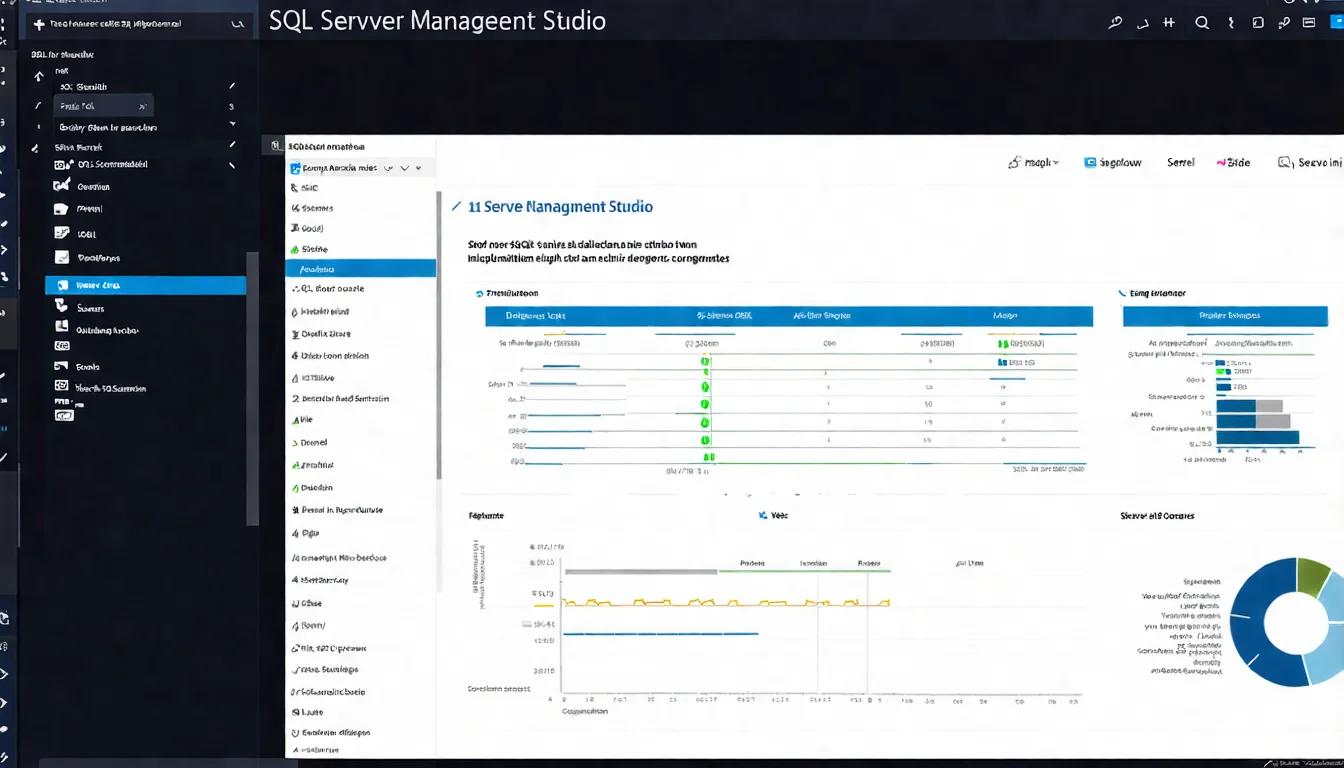
SSMS is divided into several main areas:
- Object Explorer (left): Browse servers, databases, tables, and other objects
- Query Editor (center): Write and execute SQL statements
- Results Pane (bottom): Display query results
- Properties Window (right): Display details of selected objects
Common Problem Troubleshooting
Error 18456: Login Failed
This is the most common connection error, indicating authentication failure.
Possible Causes and Solutions:
Cause 1: Wrong Password
- Confirm the password is correct
- Note case sensitivity
Cause 2: SQL Server Authentication Not Enabled
- Confirm the server has "Mixed Mode Authentication" enabled
- SQL Server service restart required
Cause 3: Account Disabled
- Check the login account status in SSMS
- Path: Security → Logins → Right-click the account → Properties → Status
Cause 4: Account Lacks Connection Permission
- Check the account's server roles
- At least
publicrole is required
Cannot Connect to Server
Checklist:
-
Confirm SQL Server Service is Running
- Open "Services" (services.msc)
- Find "SQL Server (instance name)"
- Confirm status is "Running"
-
Confirm Server Name is Correct
- Default instance:
localhostor computer name - Named instance:
localhost\instance_name
- Default instance:
-
Check Firewall Settings
- SQL Server uses TCP port 1433 by default
- Ensure firewall allows this port
-
Confirm TCP/IP Protocol is Enabled
- Open "SQL Server Configuration Manager"
- Expand "SQL Server Network Configuration"
- Confirm TCP/IP status is "Enabled"
SQL Server Service Won't Start
Common Causes:
-
Insufficient Disk Space
- Check the disk where SQL Server data directory is located
- Clean up unnecessary files
-
Data File Corruption
- Check Windows Event Viewer for error messages
- May need to restore from backup
-
Account Permission Issues
- SQL Server service account needs read/write permissions on data directory
-
Port Conflict
- Ensure port 1433 is not occupied by other programs
Enterprise Licensing and Purchase Recommendations
Licensing Model Explanation
SQL Server has two main licensing models:
Per Core (Core-based Licensing):
- Charged based on CPU core count
- Minimum purchase of 4 cores
- Suitable for scenarios with unlimited user count
- Price: Standard ~NT$120,000/2 cores, Enterprise ~NT$450,000/2 cores
Server + CAL (Server + Client Access License):
- Purchase one server license + one CAL per user
- Suitable for fixed and smaller user counts
- Server license ~NT$30,000, CAL ~NT$6,000/person
How to Choose Licensing Model
| Usage Scenario | Recommended Licensing Model |
|---|---|
| Website/App (unlimited users) | Per Core |
| Internal system (under 50 users) | Server + CAL |
| Internal system (over 50 users) | Per Core |
| Development/Test environment | Developer (Free) |
| Learning/Practice | Express (Free) |
Cost-Saving Tips
- Use Developer Edition for Development: Features equivalent to Enterprise, limited to non-production environments
- Consider Software Assurance: Includes version upgrades and technical support
- Evaluate Azure SQL: Cloud version may be more cost-effective, see Cloud SQL Solutions Comparison
- Virtualization Licensing Discounts: Special licensing rules when using Hyper-V or VMware
FAQ
Q1: What are the limitations of SQL Server Express?
SQL Server Express is the free version with main limitations including: 10GB database size limit, maximum 1GB RAM usage, and only single CPU core (4 threads). Additionally, Express edition lacks SQL Server Agent (cannot schedule jobs) and advanced reporting features. Suitable for learning, development testing, and small projects.
Q2: How much memory does SQL Server need?
Minimum requirement is 1GB (Express) or 4GB (other editions), but actual needs depend on database size and workload. General recommendations: development environment 8GB, small production environment 16GB, medium production environment 32-64GB, large enterprise environment 128GB+. SQL Server will use available memory to cache data for performance improvement.
Q3: How do I choose the right SQL Server edition?
Selection recommendations: Express (free) for learning/practice, Developer (free) for development/testing, Standard for SMBs, Enterprise for large enterprises or high availability requirements. Key considerations include: database size, user count, high availability requirements, and budget constraints. For detailed comparison, see SQL Server Editions Comparison Guide.
Further Reading
After completing SQL Server basic setup, we recommend continuing with these topics:
SQL Server Deep Learning:
- SSMS Complete Tutorial: SQL Server Management Studio Usage Guide
- SQL Server Edition Comparison: Express, Standard, Enterprise Features and Pricing
- SQL Server Express Complete Installation Tutorial
SQL Syntax Learning:
- SQL Syntax Complete Guide: SELECT, JOIN, WHERE Tutorial
- SQL JOIN Complete Tutorial: INNER, LEFT, RIGHT JOIN Illustrated
- SQL Functions Complete Guide: String, Date, Aggregate Functions Summary
Advanced Topics:
- SQL Advanced Techniques: Stored Procedures, Triggers, Transaction Control
- SQL Performance Tuning Guide: Query Optimization and Index Strategy
- Cloud SQL Database Comparison: Azure SQL, Cloud SQL, AWS RDS
Enterprise Database Architecture Planning
According to Gartner, 80% of enterprise database problems stem from improper initial architecture planning. Professional architecture design can avoid expensive refactoring costs later.
CloudInsight Database Architecture Services
- Current State Assessment: Analyze bottlenecks and risks in existing database architecture
- Architecture Design: Plan high availability and disaster recovery architecture
- Capacity Planning: Estimate future growth and recommend appropriate hardware configurations
- Performance Tuning: Optimize query performance and establish indexing strategies
Why Choose CloudInsight?
- Microsoft Certified Expert Team
- Served over 300 enterprise clients
- Complete services from planning to implementation
👉 Schedule Free Database Architecture Assessment for a Stable and Efficient Database Environment
References
- Microsoft, "SQL Server 2022 Documentation" (2024)
- Microsoft, "SQL Server Licensing Guide" (2024)
- Microsoft, "SQL Server Management Studio Documentation" (2024)
- Microsoft, "SQL Server Installation Guide" (2024)
- TechNet, "SQL Server Best Practices" (2024)
Need Professional Cloud Advice?
Whether you're evaluating cloud platforms, optimizing existing architecture, or looking for cost-saving solutions, we can help
Book Free ConsultationRelated Articles
SSMS Complete Tutorial: SQL Server Management Studio Download, Installation and Usage Guide [2026]
SQL Server Management Studio (SSMS) complete usage guide (2026 update). The latest SSMS 22 installs via the Visual Studio Installer. Covers download and installation, connection setup, query editor tips, Object Explorer navigation, execution plan analysis, and keyboard shortcuts.
SQLSQL Performance Tuning Complete Guide: Query Optimization and Index Strategy [Practical Guide]
SQL performance optimization practical guide covering execution plan analysis, index strategy, query tuning techniques, and performance monitoring tools. Demonstrates through real cases how to optimize queries from seconds to milliseconds.
SQLSQL Server Edition Comparison: Express, Standard, Enterprise Features and Pricing
Complete comparison of SQL Server Express, Standard, Enterprise edition differences, covering feature limitations, licensing models, pricing analysis, and version selection recommendations to help enterprises make the right decision.