
AWS CloudFront Tutorial: Complete CDN Setup and Optimization in 7 Steps
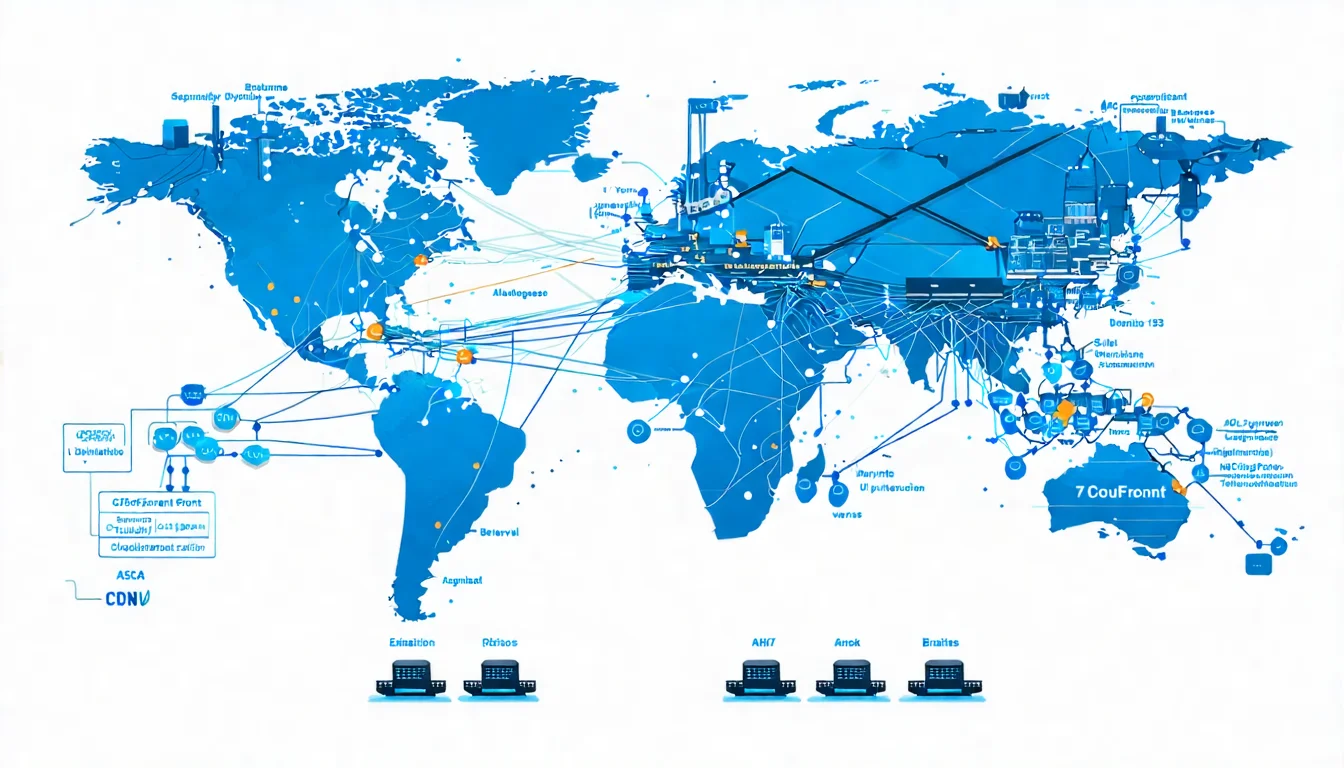
AWS CloudFront is Amazon Web Services' CDN service, deeply integrated with the AWS ecosystem, making it the preferred choice for enterprise applications. This article will guide you through CloudFront setup from basic concepts, including S3 static website integration, EC2/ALB dynamic application integration, and best practices for performance and cost optimization.
Need help with AWS architecture design? Schedule an architecture consultation, and let our AWS certified architects assist you.
CloudFront Introduction
What is AWS CloudFront?
AWS CloudFront is Amazon's global Content Delivery Network (CDN), with over 450 Edge Locations in 47 countries and 13 Regional Edge Caches worldwide.
To learn more about CDN fundamentals and how they work, check out our complete guide.
CloudFront main features:
| Feature | Description |
|---|---|
| Deep AWS Integration | Seamless integration with S3, EC2, ALB, Lambda@Edge |
| Global Coverage | 450+ edge locations across six continents |
| Security Protection | Built-in AWS Shield Standard, WAF integration available |
| Flexible Billing | Pay-per-use, no minimum spend |
| Real-time Logs | Export to S3, CloudWatch for analysis |
CloudFront vs Other CDNs
| Comparison | CloudFront | Cloudflare | Akamai |
|---|---|---|---|
| Free Tier | Yes (1TB/month, always free) | Yes (unlimited traffic) | No |
| AWS Integration | Native | Requires additional setup | Requires additional setup |
| Configuration Complexity | Medium | Simple | Complex |
| Best For | AWS users | General websites | Large enterprises |
To learn more about comprehensive CDN provider comparisons, check out our comparison article.
CloudFront Core Concepts
Before starting configuration, you need to understand four core concepts:
Distribution
Distribution is CloudFront's basic configuration unit, containing all CDN settings such as Origin, cache behavior, SSL certificates, etc.
Types:
- Web Distribution: For websites and APIs (most common)
- RTMP Distribution: For streaming media (discontinued for new creations)
Origin
Origin is where your content is stored. CloudFront fetches content from the Origin and caches it.
Common Origin Types:
- S3 Bucket (static content)
- ALB/ELB (dynamic content)
- EC2 Instance (direct connection)
- Custom Origin (any HTTP/HTTPS server)
- MediaStore / MediaPackage (streaming content)
Edge Location
Edge Locations are the actual locations where content is cached, distributed globally. User requests are routed to the nearest Edge Location.
Major Asia Pacific Nodes:
- Taiwan: Taipei
- Japan: Tokyo, Osaka
- Korea: Seoul
- Hong Kong
- Singapore
- Australia: Sydney, Melbourne
Cache Behavior
Cache Behavior determines how CloudFront handles requests for different paths.
Configurable Items:
- URL Path Pattern
- Allowed HTTP Methods
- Cache Policy
- Origin Request Policy
- Compression
- Lambda@Edge Triggers
Creating Your First Distribution
Step 1: Access CloudFront Console
- Log into AWS Console
- Search for "CloudFront" or find it in the service list
- Click "Create Distribution"
Step 2: Configure Origin
Origin Domain: Enter your source domain
- S3: Select S3 bucket (will auto-populate)
- ALB/EC2: Enter DNS name or IP
Origin Path: Optional, specify a particular path (e.g., /public)
Origin Access:
- Public: Origin is publicly accessible
- Origin Access Control (OAC): Restrict access to CloudFront only (recommended for S3)
- Origin Access Identity (OAI): Legacy setting, OAC recommended
Protocol:
- HTTPS Only (recommended)
- Match Viewer
- HTTP Only (not recommended)
Step 3: Configure Default Cache Behavior
Path Pattern: Default is * (matches all requests)
Compress Objects Automatically: Recommended to enable
Viewer Protocol Policy:
- HTTP and HTTPS
- Redirect HTTP to HTTPS (recommended)
- HTTPS Only
Allowed HTTP Methods:
- GET, HEAD (static content)
- GET, HEAD, OPTIONS
- GET, HEAD, OPTIONS, PUT, POST, PATCH, DELETE (APIs)
Cache Key and Origin Requests:
- Cache Policy: Select or create cache policy
- Origin Request Policy: Select headers to forward to Origin
Step 4: Configure Distribution Settings
Price Class: Determines which regional nodes to use
- Use All Edge Locations (best performance, highest cost)
- Use North America, Europe, Asia, Middle East, and Africa
- Use Only North America and Europe (lowest cost)
AWS WAF: Optionally integrate with WAF
Alternate Domain Names (CNAMEs): Enter your custom domain
Custom SSL Certificate: Select ACM certificate
Default Root Object: e.g., index.html
Step 5: Create and Wait for Deployment
After clicking "Create Distribution," wait 5-15 minutes for deployment. Status will change from "In Progress" to "Deployed."
Once deployed, you'll receive a CloudFront domain name (e.g., d1234567890.cloudfront.net) for testing.
Integrating S3 Static Websites
S3 + CloudFront is the most common static website architecture, suitable for blogs, corporate websites, and SPA applications.
S3 Bucket Configuration
1. Create Bucket
- Name should match your domain (e.g., www.example.com)
- Select region close to primary users
2. Upload Files
- Upload HTML, CSS, JS, images, and other static files
3. No Need to Enable Static Website Hosting
- When using OAC, enabling public access is neither necessary nor recommended
Origin Access Control (OAC) Configuration
OAC is AWS's recommended new method, replacing the older OAI:
1. Create OAC
- CloudFront Console → Origin Access → Create Control Setting
- Enter name, use default values for other settings
2. Select OAC in Distribution
- Origin Access → Origin Access Control Settings
- Select the OAC you just created
3. Update S3 Bucket Policy CloudFront will provide a Policy; copy and paste it to S3 Bucket Policy:
{
    "Version": "2012-10-17",
    "Statement": [
        {
            "Sid": "AllowCloudFrontServicePrincipal",
            "Effect": "Allow",
            "Principal": {
                "Service": "cloudfront.amazonaws.com"
            },
            "Action": "s3:GetObject",
            "Resource": "arn:aws:s3:::your-bucket-name/*",
            "Condition": {
                "StringEquals": {
                    "AWS:SourceArn": "arn:aws:cloudfront::123456789012:distribution/EDFDVBD6EXAMPLE"
                }
            }
        }
    ]
}
SPA Application Configuration
For React, Vue, Angular, and other SPAs, additional error page handling is needed:
Custom Error Response:
- HTTP Error Code: 403
- Response Page Path: /index.html
- HTTP Response Code: 200
This way, when users directly access paths like /about, CloudFront returns index.html, letting frontend routing handle it.
Integrating EC2 / ALB
For dynamic content, CloudFront typically integrates with ALB (Application Load Balancer).
ALB as Origin
1. Configure Origin Domain
- Enter ALB's DNS name (e.g., my-alb-123456.us-east-1.elb.amazonaws.com)
2. Protocol
- Recommend HTTPS Only
- Ensure ALB has SSL certificate configured
3. Origin Shield
- Optional, reduces requests to Origin
- Recommend selecting same or nearest region to ALB
Dynamic Content Cache Strategy
For APIs or dynamic content, special cache behavior configuration is needed:
Non-cached paths (e.g., /api/*):
- Cache Policy: CachingDisabled
- Origin Request Policy: AllViewerExceptHostHeader
Partially cached paths (e.g., /products/*):
- Cache Policy: Custom with shorter TTL
- Can differentiate cache by Query String or Cookie
Health Check Configuration
CloudFront automatically monitors Origin health, but you can adjust:
Origin Connection Attempts: Default 3 times
Origin Connection Timeout: Default 10 seconds
Origin Read Timeout: Default 30 seconds
Origin Keepalive Timeout: Default 5 seconds
Need a second opinion on architecture design? Schedule an architecture consultation, our AWS certified architects will provide professional advice.
SSL Certificate Configuration
Using Free ACM Certificates
AWS Certificate Manager (ACM) provides free SSL certificates:
Important: CloudFront can only use ACM certificates from the us-east-1 (N. Virginia) region.
Application Steps:
- Switch to us-east-1 region
- Go to ACM Console → Request Certificate
- Select Public Certificate
- Enter domain names (e.g., example.com, *.example.com)
- Select validation method (DNS Validation recommended)
- Add validation record in DNS
- Wait for certificate status to become Issued
Custom Domain Configuration
1. Add Alternate Domain Names (CNAMEs) in Distribution
- Enter your domain (e.g., www.example.com)
- Can enter multiple domains
2. Select SSL Certificate
- Custom SSL Certificate
- Select the ACM certificate you just applied for
3. Add CNAME Record in DNS
- Name: www
- Value: d1234567890.cloudfront.net (your CloudFront domain)
HTTPS Forced Redirect
Configure Viewer Protocol Policy:
- Redirect HTTP to HTTPS (recommended)
This automatically 301 redirects all HTTP requests to HTTPS.
Cache Optimization Strategies
Cache Policy Configuration
AWS provides default Cache Policies, or you can customize:
Default Policies:
| Policy Name | TTL | Use Case |
|---|---|---|
| CachingOptimized | Default 24 hours, max 1 year | Static resources |
| CachingDisabled | No caching | APIs, dynamic content |
| CachingOptimizedForUncompressedObjects | Same as above, no compression | Pre-compressed content |
Custom Policy Settings:
- Minimum TTL: Shortest cache time
- Maximum TTL: Longest cache time
- Default TTL: Default when Origin doesn't specify
- Cache Key Settings:
- Headers: Which headers to include in cache key
- Cookies: Which cookies to include in cache key
- Query Strings: Which parameters to include in cache key
TTL Configuration Guidelines
| Resource Type | Recommended TTL | Notes |
|---|---|---|
| HTML | 5 minutes - 1 hour | Content may update frequently |
| CSS/JS (versioned) | 1 year | Update via Cache Busting |
| Images | 1 month - 1 year | Usually don't change often |
| API Responses | 0 or very short | Depends on business needs |
| User-specific content | 0 | Should not be cached |
Cache Invalidation
When you need to force cache updates:
1. Console Operation
- CloudFront → Distribution → Invalidations → Create Invalidation
- Enter paths (e.g.,
/images/*or/*)
2. CLI Operation
aws cloudfront create-invalidation \
    --distribution-id E1234567890 \
    --paths "/*"
3. Cost Notice
- First 1,000 paths per month are free
- $0.005 per path thereafter
Recommendation: Rather than frequent invalidations, use Cache Busting (adding version numbers to filenames).
Security Configuration
AWS Shield Integration
CloudFront automatically includes AWS Shield Standard, providing:
- Layer 3/4 DDoS protection
- No additional cost
Shield Advanced (paid) provides:
- Layer 7 DDoS protection
- 24/7 DDoS Response Team
- Cost protection (compensation for attack-related extra costs)
- Cost: Starting at $3,000/month
WAF Integration
AWS WAF can integrate with CloudFront, providing:
- SQL Injection protection
- XSS protection
- Rate Limiting
- IP whitelist/blacklist
- Geo-blocking
Configuration:
- Create Web ACL in WAF Console
- Select CloudFront (Global) for region
- Add rules (can use AWS Managed Rules)
- Associate Web ACL in CloudFront Distribution
To learn more about CDN and DDoS protection, check out our dedicated article.
Geographic Restrictions
CloudFront can allow or block access based on user geographic location:
Setting Location: Distribution → Security → Restrictions → Geo Restriction
Options:
- Allow list: Only allow specific countries
- Block list: Block specific countries
Signed URLs / Cookies
For content requiring access control (e.g., paid content), use signing:
Signed URLs: Suitable for single files Signed Cookies: Suitable for multiple files or streaming
Cost Optimization
Price Class Selection
Different Price Classes have significant cost differences:
| Price Class | Coverage | Cost Difference |
|---|---|---|
| All Edge Locations | Global | Highest |
| 200 (excludes some South America, Australia) | North America, Europe, Asia | Medium |
| 100 | North America, Europe | Lowest |
Recommendation: If primary users are in Asia, selecting Price Class 200 balances performance and cost.
Compression Settings
Enabling automatic compression reduces transfer volume and costs:
Setting Location: Cache Behavior → Compress Objects Automatically → Yes
Supported compression formats:
- Gzip
- Brotli (more efficient)
Savings Effect: Typically reduces transfer volume by 60-80%
For more CDN optimization tips, see CDN Settings Optimization Tutorial.
Monitoring and Budget Alerts
CloudWatch Metrics:
- Requests: Number of requests
- BytesDownloaded: Transfer volume
- 4xxErrorRate / 5xxErrorRate: Error rates
Setting Budget Alerts:
- AWS Budgets → Create Budget
- Set monthly budget amount
- Set alert thresholds (e.g., 80%, 100%)
- Set notification method (Email, SNS)
To learn more about CDN costs and money-saving tips, check out our pricing guide.
Common Problem Troubleshooting
403 Forbidden Error
Possible Causes:
- S3 Bucket Policy not configured correctly
- OAC/OAI configuration error
- S3 Block Public Access settings
- File doesn't exist
Solution Steps:
- Confirm Bucket Policy includes CloudFront access permissions
- Confirm OAC is configured correctly
- Confirm file path is correct
504 Gateway Timeout
Possible Causes:
- Origin responding too slowly
- Origin health check failed
- Origin Timeout set too short
Solution Steps:
- Check if Origin is operating normally
- Increase Origin Read Timeout (max 60 seconds)
- Optimize Origin performance
Cache Not Updating
Possible Causes:
- Cache hasn't expired yet
- Browser cache
- TTL set too long
Solution Steps:
- Create Invalidation to clear cache
- Clear browser cache or test in incognito mode
- Adjust TTL settings
- Use Cache Busting (add version parameter to URL)
Performance Tuning
Check Items:
- Cache Hit Ratio: Target > 80%
- Origin Latency: Check Origin response time
- Edge Location: Confirm users connect to correct node
Optimization Directions:
- Increase cache coverage
- Use Origin Shield to reduce Origin load
- Consider Lambda@Edge for edge computing
Advanced Features
Lambda@Edge
Execute custom code at edge locations:
Use Cases:
- A/B Testing
- Dynamic content generation
- URL rewriting
- Authentication verification
- Header modification
Trigger Points:
- Viewer Request: User request arrives at Edge
- Viewer Response: Before response is sent to user
- Origin Request: Before request is sent to Origin
- Origin Response: After Origin response arrives at Edge
CloudFront Functions
Lighter and faster edge computing than Lambda@Edge:
Limitations:
- Can only be used for Viewer Request/Response
- Maximum execution time 1ms
- Maximum memory 2MB
Suitable Scenarios:
- URL rewriting
- Header modification
- Simple request validation
Origin Shield
Add an additional cache layer in front of Origin:
Benefits:
- Reduce Origin load
- Improve cache hit ratio
- Lower Origin costs
Cost: Charged per request
Real-World Example: E-commerce Website Architecture
A typical e-commerce website CloudFront architecture:
Architecture:
User → CloudFront → ALB → EC2 Auto Scaling Group
                  ↘ S3 (static resources)
Cache Behavior Configuration:
| Path | Origin | Cache Policy |
|---|---|---|
| /api/* | ALB | CachingDisabled |
| /static/* | S3 | CachingOptimized (1 year) |
| /images/* | S3 | CachingOptimized (1 month) |
| Default (*) | ALB | Custom (5 minutes) |
Security Configuration:
- WAF enabled with AWS Managed Rules
- Rate Limiting to prevent brute force attacks
- Geographic restrictions allowing only service regions
Conclusion: Building High-Performance AWS Architecture
After completing this article's configuration, your CloudFront should have:
- Distribution correctly configured and deployed
- S3 or ALB Origin connected properly
- SSL certificate configured
- Cache strategy optimized
- Basic security protection enabled
Next Steps:
- Monitor CloudWatch Metrics to confirm performance indicators
- Set up Budget Alerts to control costs
- Regularly review access logs to optimize cache strategy
- Consider whether Lambda@Edge is needed for advanced processing
Good architecture can save multiples in operational costs. Schedule an architecture consultation, let us review your cloud architecture together. The CloudInsight team has multiple AWS Certified Solutions Architects who have helped over 100 enterprises optimize their AWS architecture.
FAQ
What's the Difference Between CloudFront and S3 Transfer Acceleration?
CloudFront is a complete CDN service providing caching, security protection, and other features. S3 Transfer Acceleration only accelerates uploads to S3. If you need to accelerate website content delivery, you should use CloudFront.
How Much Free Tier Does CloudFront Have?
The AWS Always Free allowance includes 1TB transfer and 10,000,000 HTTP/HTTPS requests per month, permanently free—no longer limited to the first 12 months. Beyond that, charges apply per usage, approximately $0.12/GB in Asia Pacific.
Can I Use CloudFront and Cloudflare Together?
Technically possible, but generally not recommended. Two CDN layers increase complexity and latency. If you're already using AWS, CloudFront is a better choice; if you're using other clouds or need a free plan, Cloudflare is more suitable.
Does CloudFront Support HTTP/3?
Yes, CloudFront supports HTTP/3 (QUIC). It can be enabled in Distribution settings and improves performance for mobile network users.
How Do I Migrate an Existing Website to CloudFront?
Recommended steps: (1) First create a CloudFront Distribution pointing to existing Origin; (2) Test using CloudFront domain; (3) Once confirmed working, point DNS to CloudFront. The entire process can achieve zero-downtime migration.
Need Professional Cloud Advice?
Whether you're evaluating cloud platforms, optimizing existing architecture, or looking for cost-saving solutions, we can help
Book Free ConsultationRelated Articles
AI Crawler Bandwidth Cost 2026: Measure It in Your CDN Logs
AI crawler bandwidth cost has no industry average to copy: in 2026 the only credible number is on your own bill. Measure it from your CDN and origin logs.
CDNCDN Optimization Playbook 2026: Cache Strategy, Compression & Performance Tuning
Already picked a CDN — now how do you make it fast? A practical guide to cache strategy, Brotli/gzip compression, HTTP/3, image and preload optimization, edge computing, and the most common misconfigurations, so you can raise cache hit ratio and cut load time.
CDNCDN and DDoS Protection: 3 Layers of Mechanisms to Protect Your Website Security
How does CDN protect against DDoS attacks? Complete analysis of CDN security mechanisms, from traffic scrubbing and WAF to Bot protection, learn how to strengthen website security through CDN.