
AppSheet Automation Complete Tutorial | 4 Practical Examples [2026]
Your App is built, but you have to manually send notifications every time?
Automation makes your App work by itself.
New order comes in? Auto-send email. Low inventory? Auto-alert. Every morning? Auto-send report.
This tutorial teaches you how to set it up.
What is AppSheet Automation?
Explained in One Sentence
Automation is: When something happens, automatically execute an action.
For example:
- When "new order created", automatically "email the sales team"
- When "inventory below safety level", automatically "notify purchasing"
- When "8 AM every morning", automatically "send yesterday's report"
Why Do You Need Automation?
Without Automation, you have to remember to:
- Check if there are new orders
- Check if inventory is enough
- Manually compile reports every day
These repetitive tasks—Automation does them automatically for you.
What Can Automation Do?
Common applications:
| Scenario | Trigger Condition | Action |
|---|---|---|
| New order notification | New data created | Send email |
| Approval reminder | Form submitted | Notify manager |
| Low inventory alert | Value below threshold | Send notification |
| Daily report | Fixed daily time | Send report |
| Expiration reminder | Date approaching | Send reminder |
| Status change notification | Field value changed | Notify relevant parties |
Want to learn more AppSheet features? See AppSheet Complete Guide.
Automation Basic Concepts
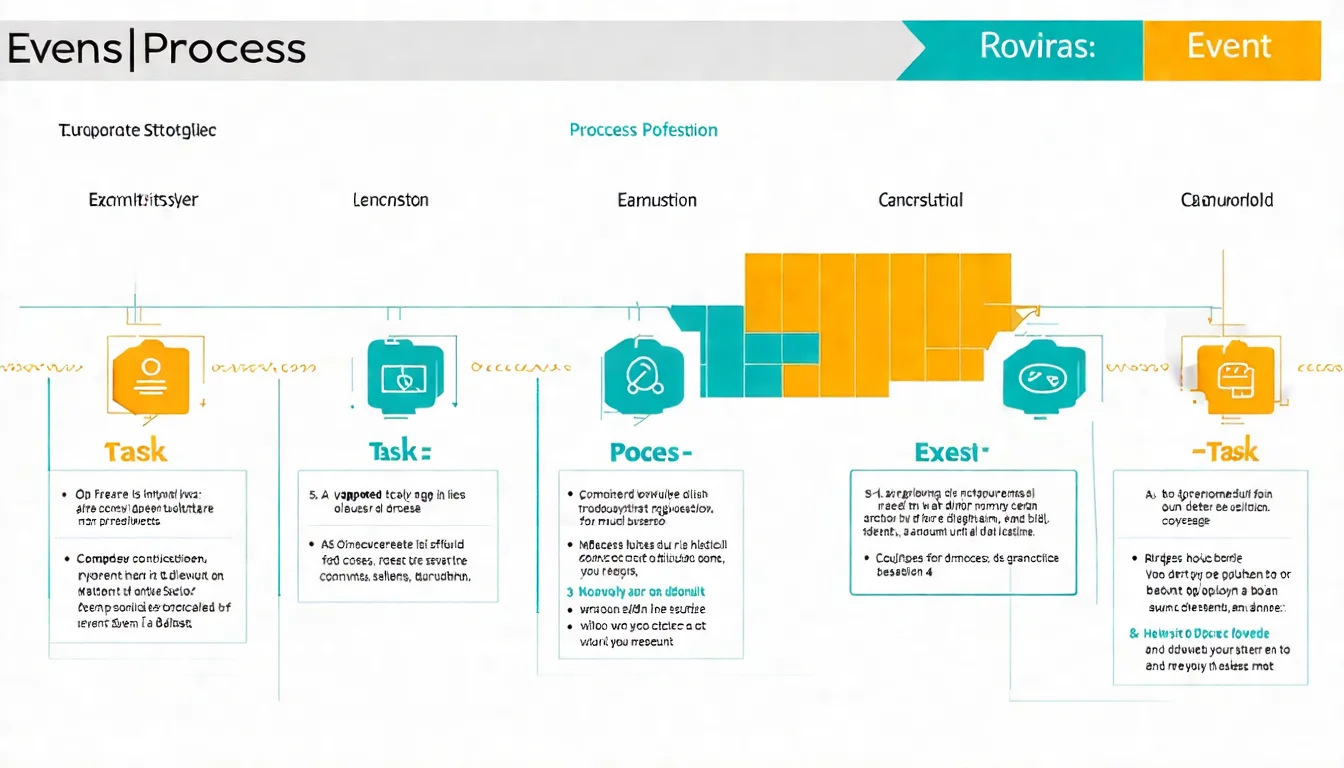
Automation consists of three core elements.
Three Core Elements
1. Event - When to trigger?
Determines when Automation starts.
Common Event types:
| Event Type | Description | Example |
|---|---|---|
| Data Change | Triggers on data change | Add, Update, Delete |
| Schedule | Triggers at fixed time | Daily, Weekly, Monthly |
| Form Submit | Triggers on form submission | User submits form |
2. Process - What to do?
Defines the steps to execute.
A Process can include:
- One or more Tasks
- Conditional logic (If-Then)
- Multi-step flows
3. Task - Specific action
The actual action executed.
Common Task types:
| Task Type | Description |
|---|---|
| Send Email | Send an email |
| Send Notification | Send push notification |
| Run Task | Execute another Task |
| Call Webhook | Call external API |
| Create PDF | Generate PDF document |
| Add Row | Add data row |
| Update Row | Update data |
Event Details
Data Change Events
Trigger timing:
- Adds only: Only trigger on add
- Updates only: Only trigger on update
- Deletes only: Only trigger on delete
- All changes: Trigger on any change
Can add conditions, e.g.: "Only trigger when Status = 'Approved'"
Schedule Events
Set fixed schedules:
- Daily: Execute daily (can specify time)
- Weekly: Execute weekly (can specify day)
- Monthly: Execute monthly (can specify date)
- Custom: Custom Cron expression
Task Details
Send Email
Send email notifications.
Can configure:
- Recipient (fixed email or from data)
- Subject
- Body (supports dynamic fields)
- Attachments
Send Notification
Send in-app push notification.
User's phone will receive notification.
Call Webhook
Call external API.
Can be used for:
- Connect to LINE Messaging API
- Connect to Slack
- Trigger other systems
For advanced Webhook applications, see AppSheet API Integration Guide.
Automation Tutorials
4 practical examples teaching you to set up Automation from scratch.
Example 1: New Data Notification
Scenario: When new order comes in, auto-email sales team.
Step 1: Create Bot
- Enter AppSheet editor
- Click "Automation" on left side
- Click "Create my first automation" or "+ New Bot"
- Name it "New Order Notification"
Step 2: Configure Event
- Click "Configure event"
- Select "Data Change"
- Table: Select "Orders"
- Data change type: Select "Adds only"
Step 3: Configure Process
Click "Add a step" → "Run a task"
Step 4: Configure Task (Send Email)
- Task type: Select "Send an email"
- To: Enter sales email, or use formula
[SalesEmail]from data - Subject:
New Order Notification - <<[OrderID]>> - Body:
Hello,

A new order needs processing:

Order ID: <<[OrderID]>>
Customer Name: <<[CustomerName]>>
Order Amount: <<[TotalAmount]>>

Please process as soon as possible. Thank you!
Step 5: Test
- Click "Test" button
- Select test data
- Confirm email sends correctly
Step 6: Enable
Switch Bot status to "On"
Example 2: Daily Report
Scenario: Every morning at 8 AM, auto-send yesterday's sales statistics.
Step 1: Create Bot
Name it "Daily Sales Report"
Step 2: Configure Event (Schedule)
- Select "Schedule"
- Frequency: Select "Daily"
- Time: Select "08:00"
- Timezone: Select your timezone
Step 3: Create Report View
First create a report View in UX → Views:
- Filter yesterday's data
- Include statistics
Step 4: Configure Task (Send Email with Report)
- To: Manager email
- Subject:
Daily Sales Report - <<TODAY()-1>> - Body:
Good morning,

Here are yesterday's (<<TODAY()-1>>) sales statistics:

Total Orders: <<COUNT(SELECT(Orders[OrderID], [OrderDate] = TODAY()-1))>>
Total Sales: <<SUM(SELECT(Orders[TotalAmount], [OrderDate] = TODAY()-1))>>

See attachment for detailed report or log into system to view.
- Attachment: Can attach PDF report
Example 3: Approval Workflow
Scenario: When leave request is submitted, auto-notify manager for approval.
Step 1: Create Bot
Name it "Leave Request Notification"
Step 2: Configure Event
- Data Change → Adds only
- Table: LeaveRequests
- Condition (optional):
[Status] = "Pending"
Step 3: Configure Task
Send email to manager:
- To:
[Employee].[Manager].[Email](get from Employee→Manager→Email) - Subject:
Leave Request Pending Approval - <<[Employee].[Name]>> - Body:
<<[Employee].[Manager].[Name]>>,

A leave request needs your approval:

Applicant: <<[Employee].[Name]>>
Leave Type: <<[LeaveType]>>
Dates: <<[StartDate]>> to <<[EndDate]>>
Days: <<[Days]>>
Reason: <<[Reason]>>

Please log in to approve.
Step 4: Add Approval Result Notification (Advanced)
Create another Bot:
- Event: Updates only, Condition =
[_THISROW_BEFORE].[Status] <> [_THISROW_AFTER].[Status] - When Status changes, notify applicant of result
Example 4: Expiration Reminder
Scenario: 30 days before contract expiration, auto-send reminder.
Step 1: Create Bot
Name it "Contract Expiration Reminder"
Step 2: Configure Event (Schedule)
- Select "Schedule" → "Daily"
- Check every morning
Step 3: Configure Process (with Condition)
- Find contracts expiring within 30 days
- Condition:
[ExpiryDate] = TODAY() + 30
Step 4: Configure Task (Send Email)
- To: Contract owner email
- Subject:
Contract Expiration Reminder - <<[ContractName]>> - Body:
Reminder,

The following contract will expire in 30 days:

Contract Name: <<[ContractName]>>
Customer: <<[CustomerName]>>
Expiry Date: <<[ExpiryDate]>>

Please evaluate renewal or take other action.
Automation setup too complex? Automation logic design requires experience. Schedule architecture consultation and let us help design optimal automated workflows.
Advanced Techniques
After learning the basics, let's look at advanced applications.
Conditional Execution
Let Automation decide whether to execute based on conditions.
Set Conditions at Event Level
Only triggers when conditions are met.
Example: Only notify manager for orders over 10,000
[TotalAmount] > 10000
Set Conditions at Process Level
Use If-Then branching.
Example: Send different notifications based on amount
IF [TotalAmount] > 50000 THEN
  Send to CEO
ELSEIF [TotalAmount] > 10000 THEN
  Send to Manager
ELSE
  Send to Sales
Multi-Step Workflows
One Bot can execute multiple Tasks.
Example: When new order comes in
- Step 1: Email sales
- Step 2: Notify warehouse
- Step 3: Call Webhook to update ERP
Steps execute in sequence.
Error Handling
Configure how to handle Automation failures.
Common Errors:
- Email send failed
- Webhook connection failed
- Insufficient permissions
Handling Methods:
- Set retry count
- Send failure notification to admin
- Log errors
Webhook Integration
Call Webhook to connect external services.
Common Applications:
- LINE Messaging API to send LINE messages
- Slack to send channel messages
- Custom API to update other systems
For LINE integration tutorial, see AppSheet LINE Integration Tutorial.
Automation Limits
Know these limits before using Automation.
Plan Limits
| Plan | Automation Support |
|---|---|
| Free | ❌ Not supported |
| Starter | ✅ Basic features |
| Core | ✅ Full features |
| Enterprise | ✅ Full features |
Free plan cannot use Automation.
For detailed plan comparison, see AppSheet Pricing Complete Guide.
Execution Limits
Starter Plan Limits:
- Monthly execution count capped
- Some advanced Tasks not supported
General Limits:
- Webhook timeout: 30 seconds
- Email attachment size: 10MB
- Steps per Bot: Has limit
Feature Limits
What Automation cannot do:
- Complex programming logic (requires code)
- Real-time two-way conversation (chatbots)
- Large batch data processing
If needs exceed Automation capabilities, may need API integration with other tools.
FAQ
Does Automation cost extra?
Yes.
Free plan doesn't include Automation.
Requires Starter ($5/user/month) or above.
How many Bots can I create?
No explicit limit.
But recommendations:
- Keep Bot count minimal
- Combine related automations into one Bot
- Regularly review and clean up unused Bots
Does Automation trigger instantly?
Data Change type Events are instant.
Schedule type follows configured times.
Can I pause Automation?
Yes.
Each Bot can toggle On/Off status.
When paused, won't trigger, but settings are preserved.
How to debug Automation?
- Use Test feature: Simulates execution without actually sending
- Check Log: Automation → Select Bot → View execution history
- Simplify flow: Test single steps first, confirm working before adding more
Can Automation trigger another Automation?
Yes, but be careful.
Use "Run Task" to trigger other Tasks.
Avoid infinite loops (A triggers B, B triggers A).
Next Steps
With Automation learned, your App can run automatically.
Practice Recommendations
- Start simple: First make a "new data notification"
- Add features gradually: After success, add conditions
- Record issues: Note errors for troubleshooting
Continue Learning
- AppSheet Complete Guide: Learn all features
- AppSheet Examples Gallery: See more practical examples
- AppSheet API Integration Guide: Advanced external integration
- AppSheet LINE Integration Tutorial: Connect LINE notifications
Need More Complex Automation?
AppSheet Automation handles most needs, but complex multi-step workflows require professional planning.
Common advanced needs:
- Multi-system coordinated workflows
- Complex conditional logic
- Batch data processing
- Deep ERP/CRM integration
Schedule architecture consultation and let us help design optimal automation architecture.
References
- AppSheet Documentation - Automation
- AppSheet Community - Automation Best Practices
- Google Cloud - AppSheet Bot Examples
- AppSheet Help - Troubleshooting Automation
Need Professional Cloud Advice?
Whether you're evaluating cloud platforms, optimizing existing architecture, or looking for cost-saving solutions, we can help
Book Free ConsultationRelated Articles
AppSheet LINE Integration Tutorial: Build a LINE Notification Bot with Messaging API [2026]
Complete AppSheet and LINE integration tutorial (2026 update): LINE Notify shut down in 2025, so this guide uses the LINE Messaging API to send notifications — 4-step Webhook setup for order alerts, approval reminders, and inventory warnings.
AppSheetAppSheet API Integration: Connect External Systems
AppSheet API complete tutorial: Getting API Key, REST API operations (CRUD), integration with Zapier/Make, enabling AppSheet to connect with any external system.
AppSheetWhat is AppSheet? 2026 Complete Guide | Free Start, Examples, Pricing All in One
Complete analysis of Google AppSheet no-code development platform. From basic tutorials to advanced features, including pricing plans, practical examples, and interface settings, teaching you to quickly build your own App.